Rotate and Flip Image
Sign in to use this tool.
Rotate and Flip Image
Rotate or mirror an image with Banana Pro. Set the angle, flip horizontally or vertically, and download the rendered result.
Mirroring reverses text and logos. Rotation changes orientation, not the scene perspective.
Apply rotation ↑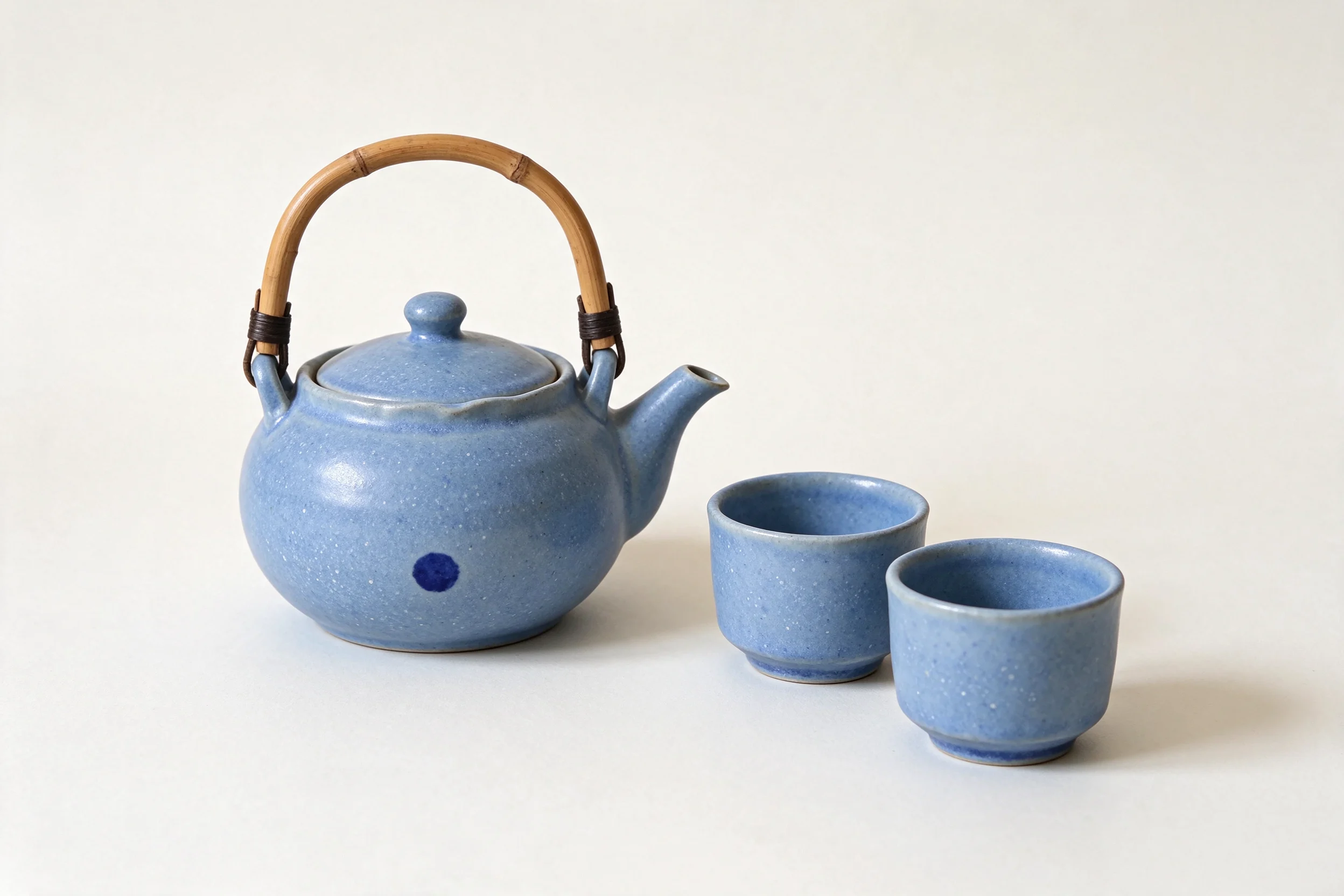
Set the angle
Use quarter turns or an angle control to change orientation.
- Left and right rotation
- Review the visible frame
Mirror the image
Flip horizontally or vertically when the composition needs it.
- Horizontal flip
- Vertical flip

Save the transformed image
Download the visible orientation rather than the original source.
- Rendered image output
- Inspect text after mirroring

Straighten a tilted horizon
Use a small angle adjustment when the composition leans. Check the output bounds and crop any unwanted empty corners after rotating.
- Fine angle correction
- Review the new outer bounds

Three simple steps
Upload the image
Start from the image you want to reorient.
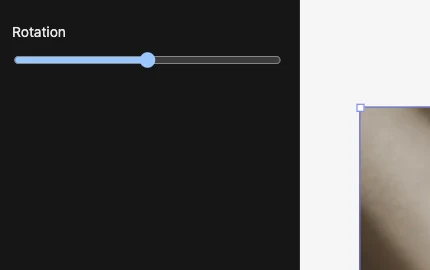
Rotate or flip
Choose the desired angle or mirror direction.
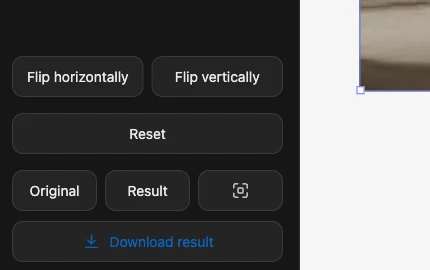
Review and download
Check the edges and save the result.
Keep working on your image
Frequently asked questions
Does flipping change the image text?
Yes. Mirroring also reverses lettering, logos and asymmetric details.
Can I rotate by 90 degrees?
The existing transformation controls support quarter turns as well as angle adjustment.
Does rotation fix perspective?
No. Rotating the whole image is different from correcting perspective or changing the camera view.
Will the download keep the rotation?
Download the rendered transformed image to include the visible orientation.
What should I inspect after a free-angle rotation?
Check the output bounds and any empty corners around the rotated image.