Remove Objects from Photo
Sign in to use this tool.
Remove Objects from Photo
Paint over unwanted objects in your photo and let Banana Pro fill the selected area. Remove small distractions, review the background, and download the edited image.
Filled areas are reconstructed and may need another pass, especially on complex backgrounds.
Remove selected area ↑
Brush over distractions
Mark the item to remove directly on the photo instead of writing a long editing instruction.
- Adjustable brush size
- Paint only the unwanted area
Fill the selected area
The removal workflow uses the surrounding image as context for the replacement background.
- Useful for small objects and clutter
- Review repeated patterns carefully

Keep a reusable photo
Check the filled region and export the edited image for your next layout.
- Source and result can be compared
- Repeat a small edit when needed
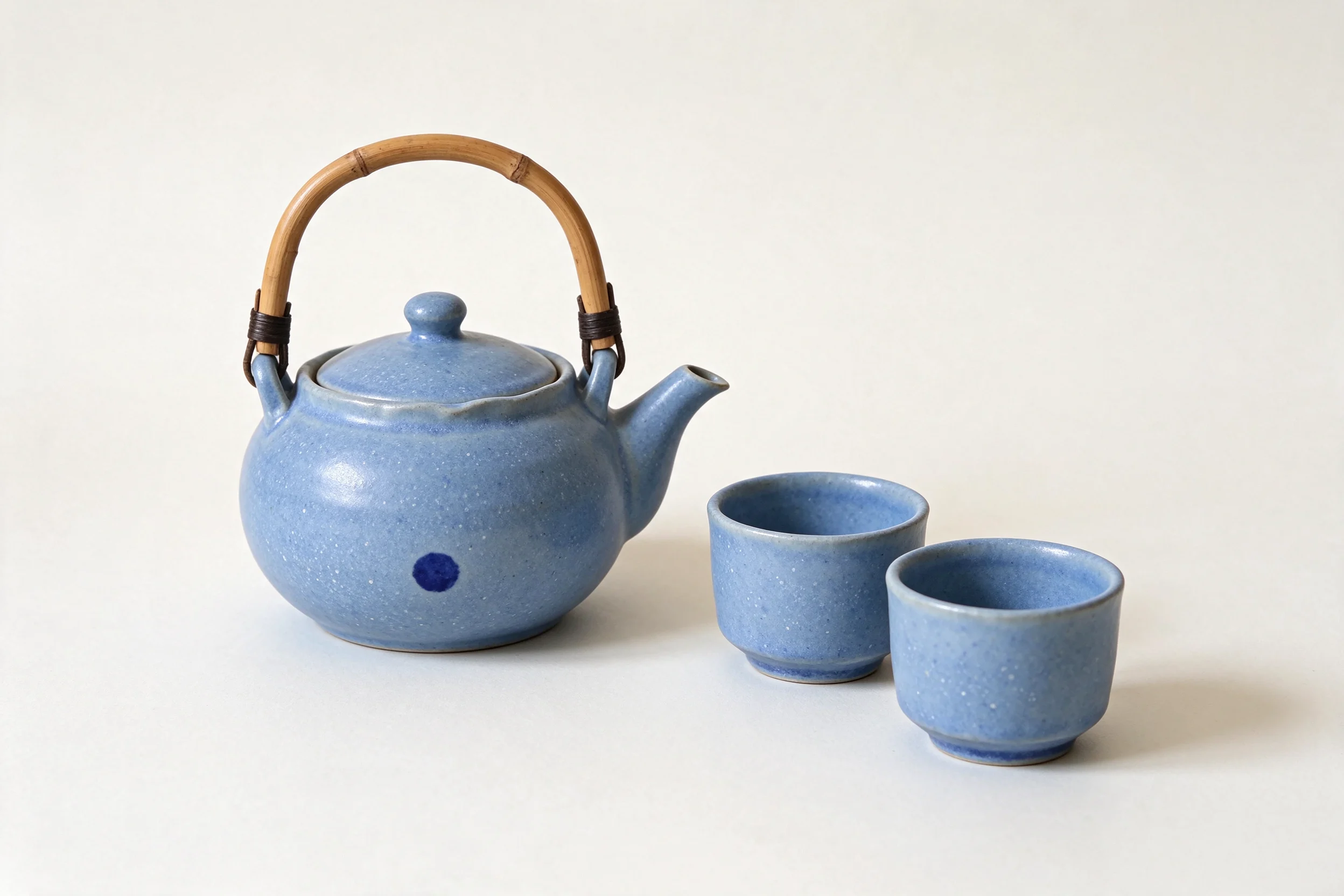
Clean a distracting sign or label
Mark unwanted lettering as a removal region when you need a clean visual draft. Check the filled area for repeated textures and incomplete character edges.
- Remove the full lettering area
- Inspect the reconstructed surface
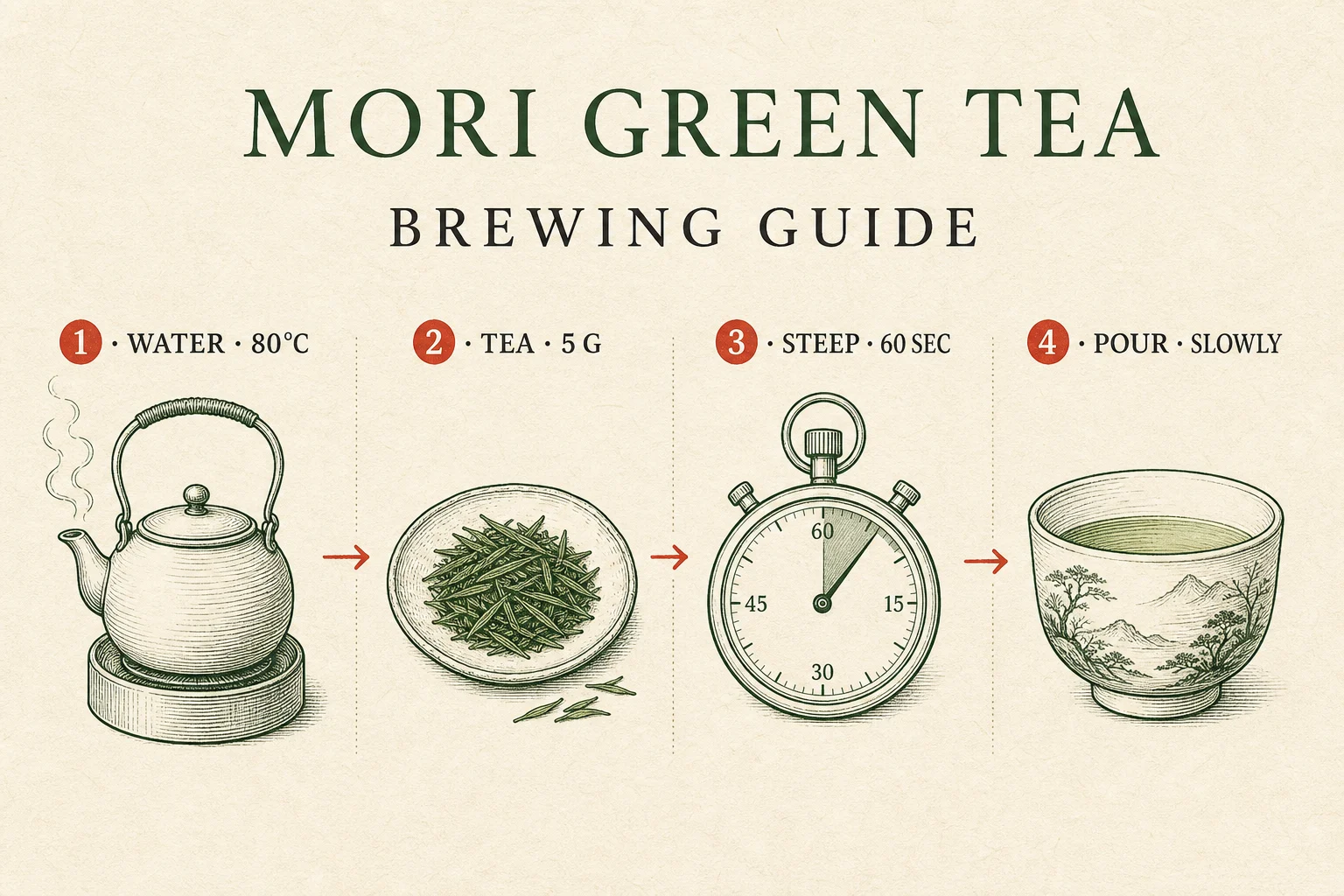
Three simple steps
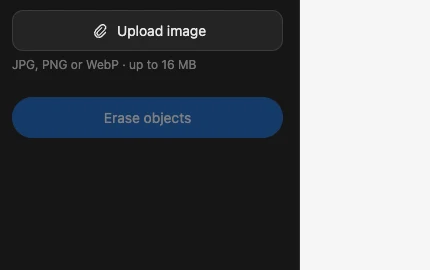
Upload a photo
Choose the image you want to clean up.
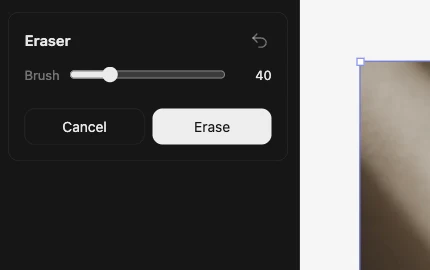
Paint over the object
Cover the object and its unwanted edge or shadow.
Remove and review
Inspect the filled background, then download the result.
Keep working on your image
Frequently asked questions
Does this cut out the object?
This tool removes the marked area and fills it. Use Remove Background if you want to keep a subject on transparency.
What works best?
Small objects against simple surroundings are easier than large subjects covering complex architecture or text.
Should I mark the shadow too?
Mark a shadow if it should disappear with the object. Leave areas you want to keep unmarked.
Can it remove a person?
You can mark a person, but a large missing region may produce visible reconstruction errors.
Can it reveal what was behind the object?
No. It creates a plausible fill; it does not recover hidden scene information.
Remove Objects from Photo
Use a photo with a clear background around the object you want to remove.
Remove selected area