Image Cropper
Sign in to use this tool.
Image Cropper
Crop an image with Banana Pro. Choose a ratio or adjust the frame, keep the area you need, and download the cropped image.
Cropping removes image area and cannot add detail or recover content outside the source.
Crop image ↑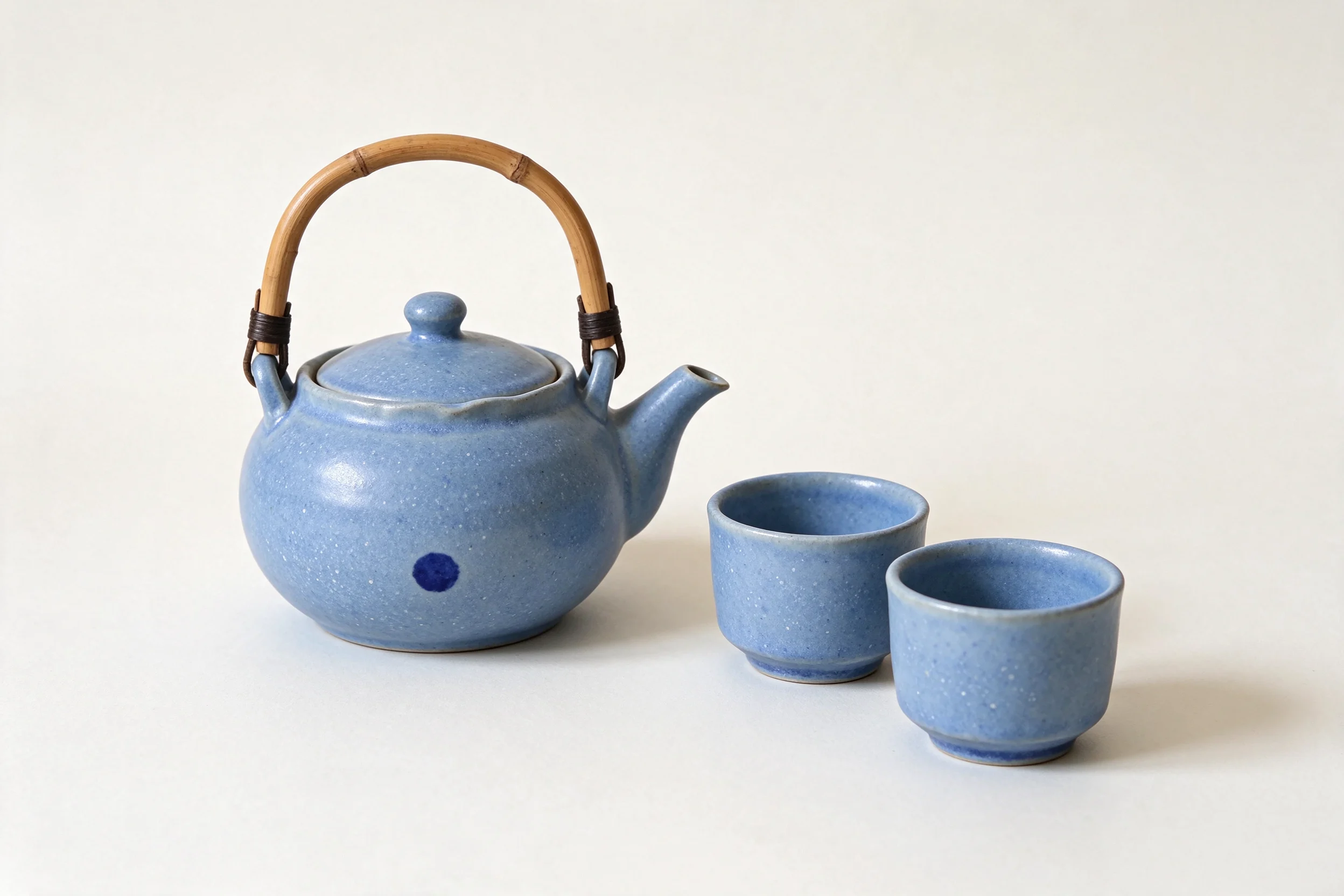
Choose the framing
Move the crop boundary to retain the part you need.
- Visual crop frame
- Original-image reference

Use a useful ratio
Set a supported ratio for a square, portrait or landscape layout.
- Ratio controls
- Check the subject position
Save the cropped pixels
Export the visible crop rather than the unchanged source file.
- Cropped image output
- Discarded edges are excluded

Trim empty borders for a product layout
Remove excess surrounding space when a product needs a tighter frame. Keep the handle, corners or other important details inside the crop before confirming it.
- Tighter product framing
- Keep important edges visible

Three simple steps
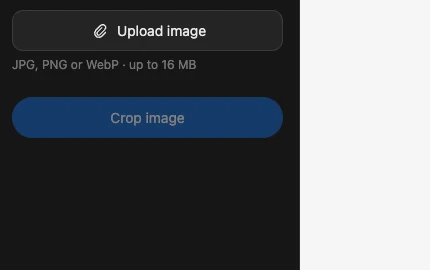
Upload your image
Choose the composition you want to reframe.
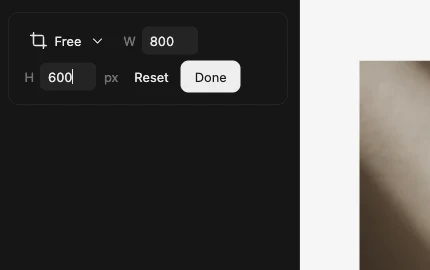
Adjust the crop
Keep the desired area inside the frame.
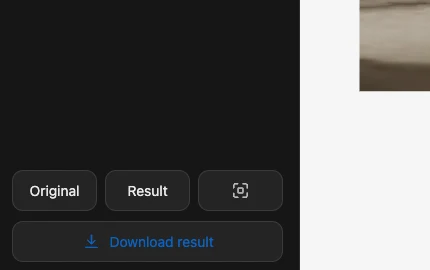
Finish and download
Save the cropped image.
Keep working on your image
Frequently asked questions
Does cropping add new content?
No. It retains a smaller area of the existing image. Use Image Extender to generate outside the edges.
Does cropping improve resolution?
No. A crop keeps fewer source pixels and does not create missing detail.
Can I choose an aspect ratio?
Use the supported ratio controls or adjust the available crop frame.
Will the original file be overwritten?
Download saves the edited result; keep your source file if you may need the discarded edges later.
Why does the subject look larger?
Cropping removes surrounding space, so the subject occupies more of the remaining frame.